GMB Listing Optimization
Filling Out Your GMB Profile
Let’s walk you through each of the individual sections and the steps to fill out each section properly.
Fill out as much information as possible for your business.
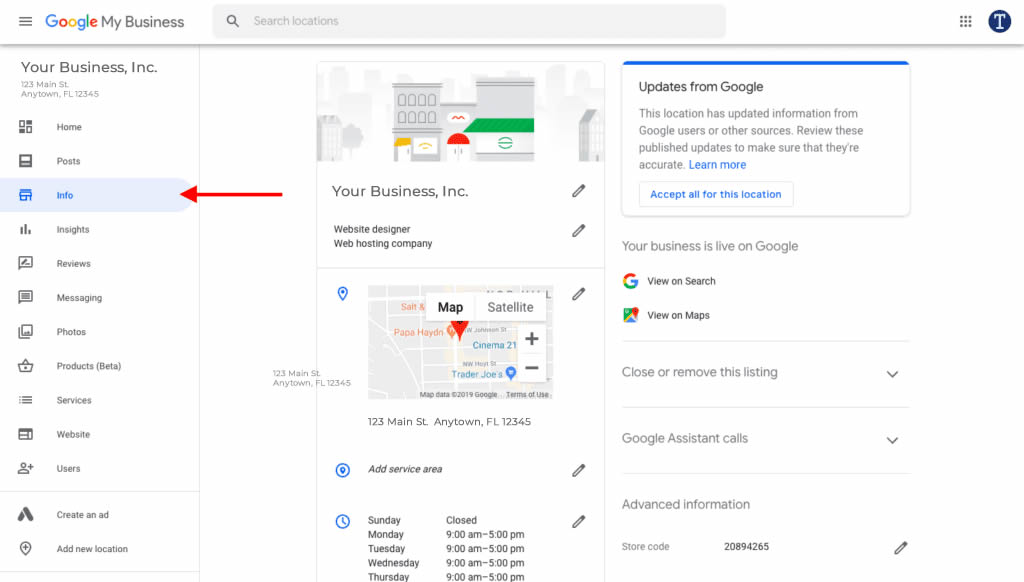
Log in to your GMB account (google.com/business) and click on the “Info” tab on the left.
Business Name
Enter your business name EXACTLY how it was registered or how you have it on signage, trucks, business cards, etc.
Note:
- Do not add extra keywords to your business name with the intent of ranking the listing for them.
- Do not add a location name or city.
Example:
If your registered business name is South Pipes, LLC:
CORRECT: South Pipes or South Pipes, LLC
WRONG: South Pipes Plumber in Southtown, FL
Primary Category
Select the primary category which best represents your business.
Note:
Choose the category that best represents your business.
- The primary category should be the most specific category that answers the question “This person is (a/an) ___________.”
- If you’re a multiple service provider (Ex. You do HVAC, Plumbing & Water Softener Installations), choose the category you want your business to grow more in.
- If your business has agents or practitioners in different specialties, choose a primary category as “Law Firm” with the lawyers having their own GMB lisitngs as “Divorce Lawyer”.
Example:
Choose the category that best represents your business.
“Papa John’s” offers pizza takeout and delivery but does not offer on-premises dining. It should use the category “Pizza Delivery” and the additional category “Pizza Takeout” (instead of the less specific “Delivery Restaurant” or “Takeout Restaurant”).
Secondary Category
Select up to 10 secondary categories that apply to your business.
Notes:
- Do not add categories if they do not directly apply to your company’s offerings.
Example:
If you are a divorce lawyer, choose:
- Family Law Firm
- Attorney
- Law Firm
If you are a mortgage broker, but not a direct lender, do not choose:
- Mortgage Lender
Address
Put the physical street address on the first line and suite numbers on the second line.
Notes:
- If an employee of your business is not actively at your location during business hours, then you should be hiding your address.
- P.O. boxes or mailboxes located at remote locations are not allowed.
- If your address doesn’t have a street number or you’re sure that you’ve entered the address correctly, but the system still can’t find it, you can pin your business’ location directly on the map.
- Put your street address on Line 1 and your suite # on Line 2
Example:
Line 1: 520 6th Avenue
Line 2: Suite 311
Service Area
Add the cities, postal codes or regions that you service.
Notes:
- You can set your service area based on the cities, postal codes, or other areas that you serve.
- You can add up to 20 service areas.
- Use this if you meet customers at their locations ONLY. (e.g. a plumber or cleaning service)
- Some businesses have customers visit them AND ALSO go to customers’ locations. It is okay to have an address and list a service area on the same listing. (e.g. a restaurant that also delivers food)
- Your visibility will be significantly reduced outside of a 20 mile radius (about 32 km), regardless of the service areas you list.
Example:
If you service the entire USA, listing the country as a service area does not mean you will have visibility everywhere.
Keep in mind the following if you update your business information:
- If you DON’T serve customers at your business address, leave the address field blank and only enter your service area.
- If you DO serve customers at your business address, but also have a service area, enter both your address and service area.
Business Hours
Enter regular customer-facing hours of operation.
Notes:
- If you are able to extend store hours by being available a little longer via phone – then include these as opening hours on your listing. Doing so improves visibility as your listing will be shown more when competitors’ hours have marked them as closed.
- Add special hours for holidays and other events.
Example:
Christmas Day: Closed
December 1-23: Extended hours.
If you are a seasonal business: remove operating hours when closed and re-enter operating hours when the season comes.
Certain types of businesses shouldn’t provide hours, including those with varied hours (like schedules for different types of activities, including showtimes, worship services or classes) and those that operate by appointment only.
Examples of business that should not provide hours:
- Hotels and motels
- Movie theaters
- Schools and universities
- Transportation services
- Airports
- Event venues
- Natural features
Primary + Additional Phone Numbers
Notes:
- If using call tracking, use this number in the primary phone field. Add your local business number and toll-free number in the additional phone fields.
Example:
Primary Phone: 310-123-4567
Additional Phone: 1-800-123-4567
Website
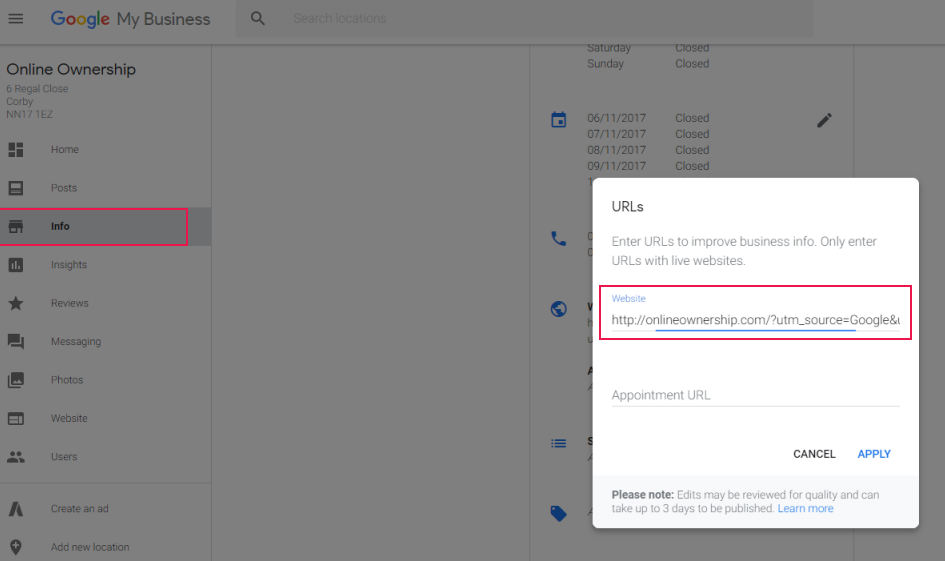
Add your website (including the http:// or https:// )
Not required, but helpful, is to add a small bit of code (called UTM Code) to the end of your website address. This will track the visitor visiting your website and let you know that they came from your Google My Business page.
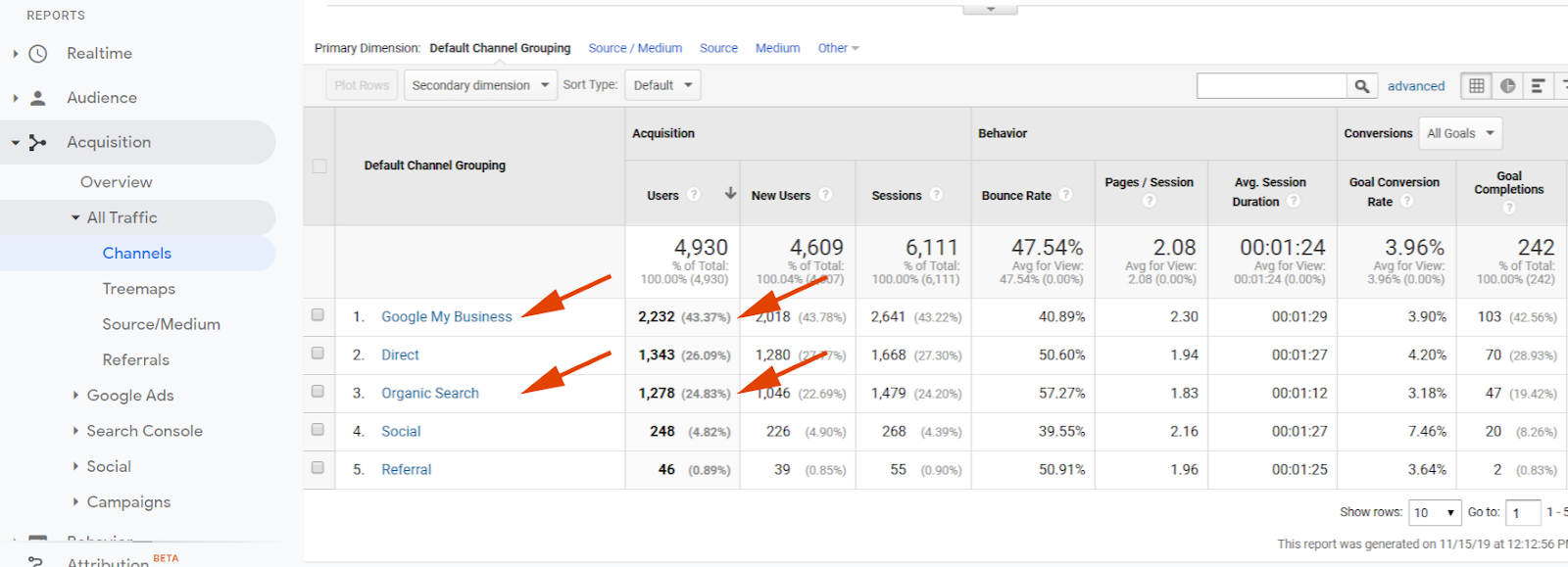
If you use Google Analytics and would like to see this separated in the organic search results, simply follow the instructions below.
Additionally, to make this even EASIER, simply use the following UTM generator.
Just put GMB in for the “Source” and organic for the “Medium”.
To do this manually with the basic code:
- Be sure to start with the link to a local landing page.
- Add the following code to the end of your website URL:
?utm_source=gmb&utm_medium=organic
Example:
Website: https://www.YourCompany.com/
With UTM code: https://www.YourCompany.com/?utm_source=gmb&utm_medium=organic
![]()
Appointment URL
Add the URL of your contact page or booking system.
Notes:
- Choose the URL (Website Address) of your site that does the appointment settings.
- If you want, you can just link to the contact page.
- If you use an external system, then just put your personalized link in there.
Using your site address, copy the page URL for the appointment page or contact, and add the UTM code like you did above to see the clicks in your analytics.
?utm_source=gmb&utm_medium=organic
Example:
Contact Page: Website: https://www.YourCompany.com/contact/
With UTM code: https://www.YourCompany.com/contact/?utm_source=gmb&utm_medium=organic
Menu (for Restaurants)
Notes:
- You cannot link directly to PDF documents here, it must be a page on your website.
- You can add your menu directly to your Google My Business listing (recommended).
Using your site address, copy the page URL for the menu page and add the UTM code like you did above to see the clicks in your analytics.
?utm_source=gmb&utm_medium=organic
Example:
Menu Page: Website: https://www.YourCompany.com/menu/
With UTM code: https://www.YourCompany.com/menu/?utm_source=gmb&utm_medium=organic
Service/Menu/Product Information
These sections allow you to provide information about company offerings directly to the listing. Many companies gloss over this. Don’t skip this if it applies to you!
Notes:
- Services are only available for specific types of service-focused businesses.
- Menus are only available for restaurants.
- Products are only available for certain retail businesses.
- Create separate sections for each category of your services/menu/products.
- If you offer many services/products, I would recommend only adding the most popular offers. Be sure to update these if they are seasonal.
- Enter the offer names as they are described normally by your business.
- If your offer names are highly branded (e.g. a car inspection service named “Full Scan Pro”), then be sure to specifically call out what the service is in terms that customers would understand in the description.
- Add a description for each product/service. You can use the same description used on your website or in-store (there is a 1,000 character limit).
Example:
Service Name: Car Inspection
Service Description: We provide full car inspections to customers in Irvine CA. This service is available for all sizes and types of vehicles. If you do not require a full inspection, and would only like specific areas looked at, we can do this at a discounted price as well.
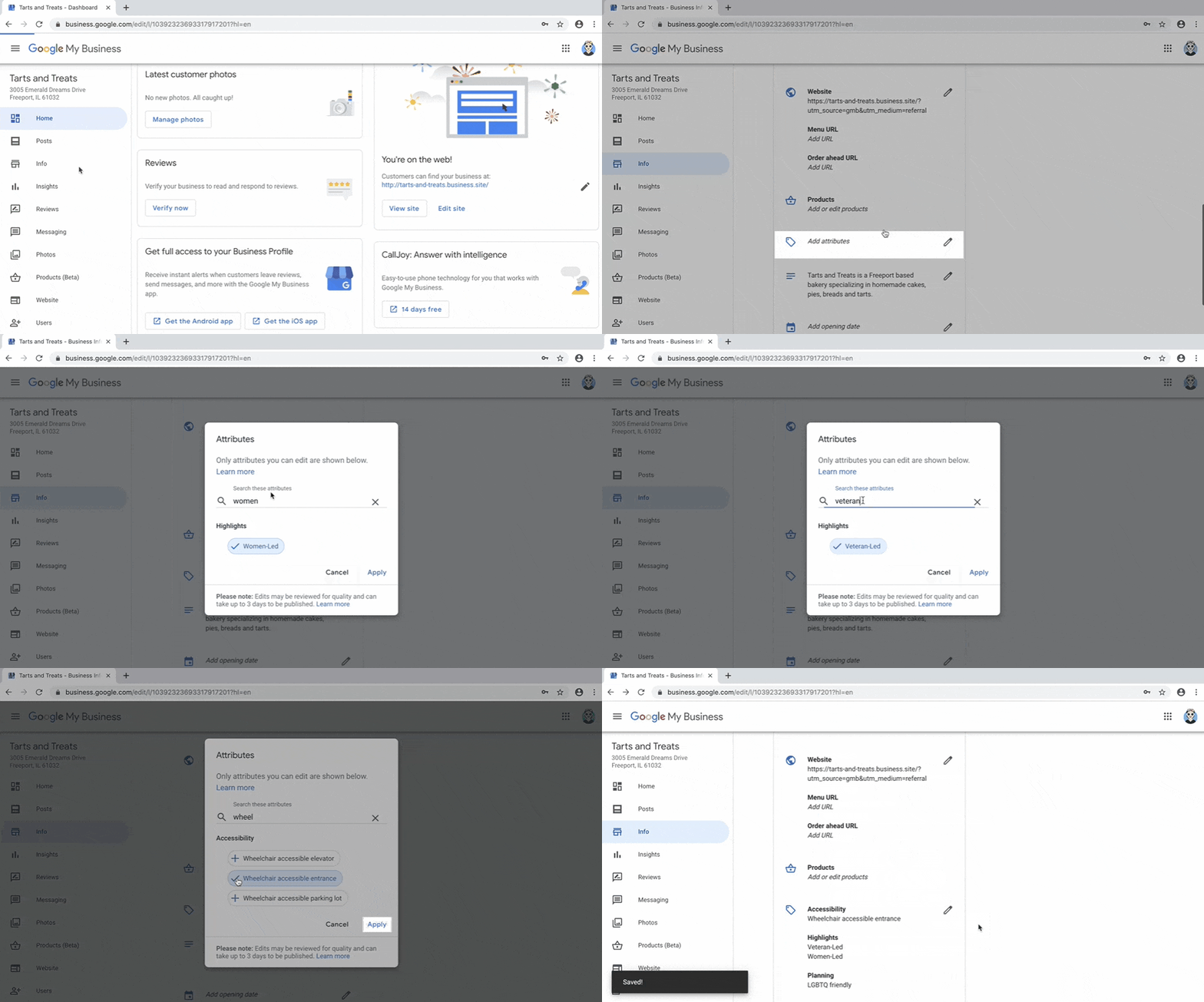
Business Attributes
Notes:
- You can only select from the list provided (similar to business categories).
- Only include attributes that accurately describe your business. Your customers can verify this on their end and Google will weigh their input heavily.
Example:
If you have a wheelchair accessible storefront that is women owned and veteran owned, some attributes to list would be:
- Veteran Led
- Women Led
- Wheelchair Accessible
Business Description
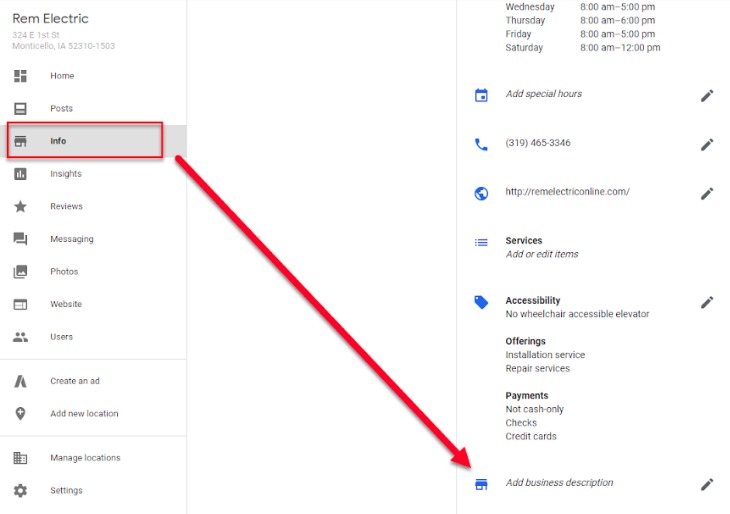
This is the “elevator pitch” for your business.
Notes:
- It should be written with prospective customers in mind (people who know nothing about your business).
- Focus on the business as a whole rather than specific products/services or promotions.
- Remember, you are writing for humans, not search engines.
- Do not use website URLs, special characters or emojis.
- There is a 750 character limit.
Example:
Rem Electric is located in Vancouver Canada. Known for having the most five star reviews in the market, Rem offers results-focused electrical services for residential and commercial properties.
The description field is not used in the ranking algorithm, it is used to detect spam.
The Do Not Do List:
Don’t Keyword Stuff
There’s no point in stuffing it with keywords. In fact, if you do stuff it with keywords, you could potentially get your listing flagged for spam.
Don’t use ALL CAPS
When people put stuff in all caps, it’s like you’re shouting. That could get the listing suspended. I have seen that happen in the past before.
Don’t Use Links in Your Copy
You can add URLs in the description, but don’t do that, that could get the listing suspended.

Store Codes
Notes:
- There can be no spaces or special characters.
Example:
- For a business with 10 locations, numbering them 1-10 as store codes is feasible.
Labels
Notes:
- You can assign up to 10 labels per location.
Example:
For a business with many locations in one city, adding labels based on sector of the city may be helpful:
- North
- South
- East
- West
A business with different types of locations can add labels based on location type:
- Full Service
- Limited Service
Google Ads Locations Extensions Phone
Notes:
- Leave this field blank unless you are actively running a Google Ads campaign with location extensions. If this sounds like gibberish to you, it usually means you aren’t running an Ads campaign and do not need to worry about this.
SITEDESIGNZ
Web Design and Local SEO