Listings with photos are 2x as likely to be considered reputable and get 42% more clicks.” – Google
A big part of optimizing your Google My Business listing is in the photos that you choose. Photos are critical for establishing a first impression with new customers, it is important that your photo choices convey the things you want them to convey.
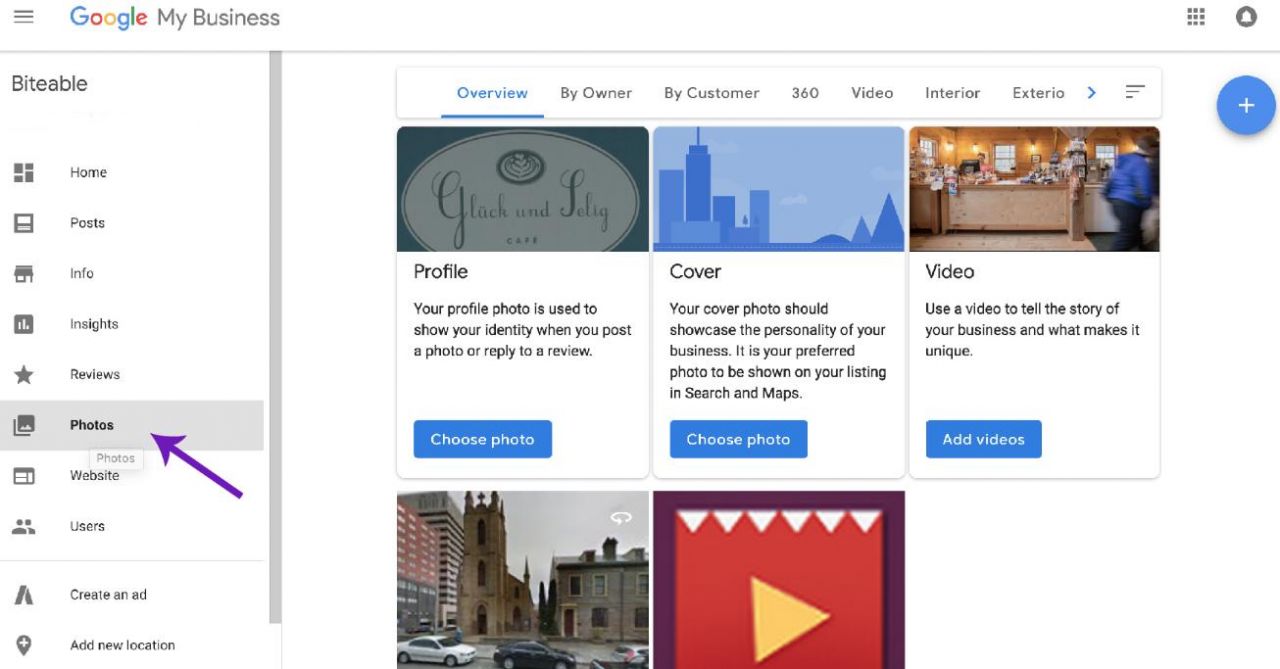
Notes:
Try to add at least one for each type of image:
 Business logo (Profile Photos) is the photo that will show up next to your business name whenever you upload new photos, respond to a review or share a new post. Most companies use their logo for their GMB profile photo.
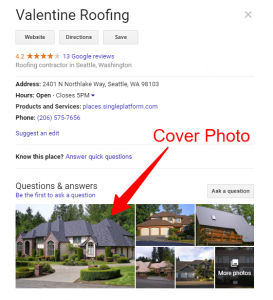
- The cover photo will be the largest photo that shows up in your listing and is the most visible to customers who are checking out your business.
- An external (street) view of the building (if you have signage on the front.)
- An internal (office) view
- Photos of the team or the owner.
- Photos showing your product or service
Conditions:
- Don’t use a professional photographer – customers like real life shots.
Google says:
“Businesses with photos receive 35% more clicks through to their websites than businesses that don’t have photos.”
Notes:
Currently, GEO Tagging has not been proven to affect ranking in GMB.
However, it will help on images for your website, so I have included the method below:
GEO Tagging images is simply embedding the image with your businesses location coordinates and keywords.
If you have a physical location (office, store, warehouse, etc.), then use that address for the coordinates below.
If you don’t have a physical location and want to rank closer to the center of the city, simply pick a spot on the street map and grab the coordinates from there.
Getting Coordinates:
- Go to Google Maps and put in the location of your business or street in the center of your city.
- In a new browser tab open https://tool.geoimgr.com/
- In Google Maps, search for your business or pick a spot in the center of your city.
- Right click on the Pin icon and select “Whats Here”.
- Copy the Latitude (Lat) and Longitude (Lon) coordinates in the box at the bottom of the page.
- Open GEOImgr tool and drag and drop your image into the upload panel.
- Paste the coordinates in the left panel.
- Add your keywords into the “Image Description” field.
- Click “Write EXIF Tags” .
- Download to your computer, then upload to GMB.
Video below covers these steps:


By following the process above, you will have a fully optimized image with location and business category data added to the image.